QuickBooks Desktop is designed to handle important accounting activities, including bookkeeping, payroll-related workflows, financial reporting, customer records, vendor transactions, and company file management. However, even a well-maintained accounting application can encounter technical problems. A company file may stop opening, the program may freeze during startup, a multi-user connection may fail, or an installation may become damaged after a Windows update.

QuickBooks Tool Hub provides access to diagnostic tools for common QuickBooks Desktop problems.
When these situations occur, identifying the correct troubleshooting method is often more difficult than expected.
QuickBooks Tool Hub provides a centralized collection of diagnostic and repair utilities designed to help users troubleshoot common QuickBooks Desktop problems on Windows. Instead of searching for several separate troubleshooting applications, users can access different utilities through one interface and select the category that best matches their problem.
However, using the wrong utility can waste time or leave the original issue unresolved. Understanding what each section does, when to use it, and what precautions to take before running a repair can make troubleshooting considerably more effective.
This guide explains QuickBooks Tool Hub in detail, including its purpose, current version, installation process, diagnostic features, common error scenarios, practical troubleshooting procedures, and limitations.
What Is QuickBooks Tool Hub?
QuickBooks Tool Hub is a free troubleshooting application developed by Intuit for diagnosing and resolving various problems associated with QuickBooks Desktop for Windows.

QuickBooks Tool Hub 1.6.0.8 brings together diagnostic utilities designed to help troubleshoot common QuickBooks Desktop issues.
It brings multiple diagnostic utilities together under a single interface. These utilities address different categories of technical problems, such as:
- Company file errors and data-related problems.
- QuickBooks Desktop startup and performance issues.
- Installation and uninstallation failures.
- Multi-user hosting and network connectivity problems.
- PDF creation and printing difficulties.
- Certain administrator password reset situations.
- Additional Windows troubleshooting tasks.
The main advantage of the application is that users do not need to identify and download every diagnostic utility separately. They can open the Tool Hub, select the relevant troubleshooting category, and launch the appropriate tool.
It is important to understand that Tool Hub is a diagnostic launcher, not a complete replacement for every QuickBooks repair procedure. Some problems require additional investigation, Windows configuration changes, company file recovery, or professional technical assistance.
It also does not replace QuickBooks Online troubleshooting because its utilities are designed for QuickBooks Desktop environments.
QuickBooks Tool Hub Version and Compatibility
Intuit's current support documentation identifies QuickBooks Tool Hub version 1.6.0.8 as the latest version in its published troubleshooting instructions at the time of writing.
For the best experience, Intuit recommends Windows 11 (64-bit).
Before installing the application, consider the following:
| Requirement | Information |
|---|---|
| Application | QuickBooks Tool Hub |
| Current documented version | 1.6.0.8 |
| Operating system | Windows |
| Recommended environment | Windows 11, 64-bit |
| Installation file | QuickBooksToolHub.exe |
| Developer | Intuit |
| Cost | Free utility |
| Primary purpose | QuickBooks Desktop troubleshooting |
The available tools and their behavior can vary between versions. Therefore, users should check the installed version instead of assuming that an older installation contains every feature described in a newer guide.
To verify the installed version, open QuickBooks Tool Hub and select the Home tab. The version information is displayed on that screen.
When Should You Use QuickBooks Tool Hub?
Not every QuickBooks error requires a diagnostic utility. Some problems are related to incorrect settings, expired subscriptions, missing permissions, or temporary Windows issues.
Tool Hub is particularly useful when the problem appears to involve the QuickBooks Desktop application, its installation components, company file access, or multi-user networking.
Consider these examples:
QuickBooks Desktop will not open: The program may freeze, stop responding, or close unexpectedly during startup.
Company file will not open: A damaged company file, incorrect folder permissions, or other data-related problems may prevent access.
Multi-user mode is unavailable: Workstations may fail to communicate with the server hosting the company file.
QuickBooks installation fails: Damaged installation components or Windows-related problems may interrupt installation or updating.
PDF or printing functions stop working: QuickBooks may have difficulty creating PDF documents or communicating with the installed printer.
The correct troubleshooting category depends on the symptoms. Selecting a tool simply because its name resembles an error message is not a reliable diagnostic method.
Understanding Every Major QuickBooks Tool Hub Section
One of the most useful aspects of QuickBooks Tool Hub is its organized interface. Each section serves a different troubleshooting purpose.
1. Company File Issues
The Company File Issues section is designed for problems involving QuickBooks Desktop company files.
A company file stores important accounting information, including customer details, vendor records, transactions, balances, and other business data. If QuickBooks cannot access or properly read this information, the problem may originate from the file itself rather than the application.
This section provides access to utilities such as Quick Fix my File and QuickBooks File Doctor.
Quick Fix my File
Quick Fix my File is an initial troubleshooting option for certain company file problems.
It can help address common data-related issues without requiring users to begin with a more extensive diagnostic procedure.
A practical approach is:
- Close QuickBooks Desktop.
- Open QuickBooks Tool Hub.
- Select Company File Issues.
- Choose Quick Fix my File.
- Allow the utility to complete its operation.
- Reopen QuickBooks Desktop and check whether the company file opens normally.
If the problem continues, consider using File Doctor after creating a separate backup.
QuickBooks File Doctor
QuickBooks File Doctor is designed to diagnose certain company file and network-related problems.
It can be useful when:
- A company file refuses to open.
- QuickBooks displays certain 6000-series errors.
- Customer, vendor, or employee lists appear missing or blank.
- Company file access problems occur in supported network configurations.
Common error codes associated with company file troubleshooting include:
- Error -6150
- Error -6000 -82
- Error -6000 -305
- Error -6000 -301
- Error -6147
- Error -6130
To use File Doctor:
- Open QuickBooks Tool Hub.
- Select Company File Issues.
- Choose Run QuickBooks File Doctor.
- Wait for the diagnostic application to open.
- Select the appropriate company file from the available list.
- If the file is not displayed, use Browse to locate it.
- Select the relevant checking option.
- Enter the QuickBooks administrator password when requested.
- Allow the diagnostic process to finish.
- Reopen the company file and verify the results.
The time required depends on the company file and the nature of the problem. Intuit indicates that certain scans can take approximately 10–15 minutes.
An unsuccessful scan message does not always mean the file remains damaged, so verify the actual result by opening the file and reviewing its contents.
Important: File Doctor cannot guarantee recovery of every damaged company file. It should not be treated as a substitute for a verified backup or a specialized data recovery procedure.
2. Network Issues
The Network Issues section is intended for QuickBooks Desktop environments where multiple computers access a company file hosted on a server.
In multi-user mode, the workstation and server must communicate correctly. Problems with hosting configuration, Windows permissions, firewall rules, or database services can interrupt that communication.
This section is particularly relevant when users encounter:
- Error H202.
- Error H101.
- Error H303.
- Error H505.
- Multi-user hosting problems.
- Difficulty connecting to a company file stored on another computer.
QuickBooks Database Server Manager
Database Server Manager helps manage the network-related components required for supported multi-user company file access.
If users receive H202 or similar hosting errors, begin by identifying which computer stores the company file.
Then:
- Sign in to the computer hosting the company file.
- Open QuickBooks Tool Hub.
- Select Network Issues.
- Launch QuickBooks Database Server Manager.
- Browse to the folder containing the company file if necessary.
- Start the scan.
- Wait for the scanning process to complete.
- Review the results and test access from a workstation.
Running network diagnostics from the correct server computer is important. A workstation and a server do not perform identical hosting responsibilities.
Why firewall settings matter
Windows Firewall or third-party security software may restrict communication required by QuickBooks Desktop.
If a network scan does not resolve the issue, investigate:
- Whether the server and workstations are connected to the same intended network.
- Whether the company file folder has appropriate permissions.
- Whether QuickBooks Database Server Manager is installed and running where required.
- Whether the relevant QuickBooks network ports are allowed through the firewall.
- Whether the correct hosting configuration is enabled.
- Whether the company file is stored in an accessible location.
Avoid disabling the firewall permanently. Configure appropriate exceptions instead, following the requirements for the installed QuickBooks version.
3. Program Problems
Program Problems is the appropriate starting point when QuickBooks Desktop itself is behaving unexpectedly.
Typical symptoms include:
- QuickBooks freezes during startup.
- The application becomes unresponsive.
- QuickBooks crashes while opening a company file.
- Certain background processes remain stuck.
- PDF creation or printing stops working.
Two particularly useful utilities are Quick Fix my Program and the Print & PDF Repair Tool.
Quick Fix my Program
Quick Fix my Program closes QuickBooks-related background processes and performs a quick repair of the program.
Follow these steps:
- Close QuickBooks Desktop.
- Open QuickBooks Tool Hub.
- Select Program Problems.
- Choose Quick Fix my Program.
- Allow the repair to complete.
- Open QuickBooks Desktop again.
- Test the application using your company file.
This is a reasonable first step when QuickBooks freezes or fails to open because of stuck application processes.
However, it does not repair every possible cause of a startup failure. Damaged Windows components, corrupted user configuration files, and damaged company files may require different solutions.
Print & PDF Repair Tool
QuickBooks Desktop uses Windows-related components to create PDF documents and communicate with printers.
If users cannot print reports, save invoices as PDFs, or generate other documents, the problem may involve the application or its printing components.
The Print & PDF Repair Tool can help troubleshoot supported PDF and printing issues.
After running the utility, test the function that originally failed. For example, try printing a report or saving a document as a PDF.
If the issue continues, check the Windows default printer, printer drivers, permissions, and the status of the relevant Windows services.
4. Installation Issues
The Installation Issues section addresses problems related to installing, uninstalling, or repairing QuickBooks Desktop.
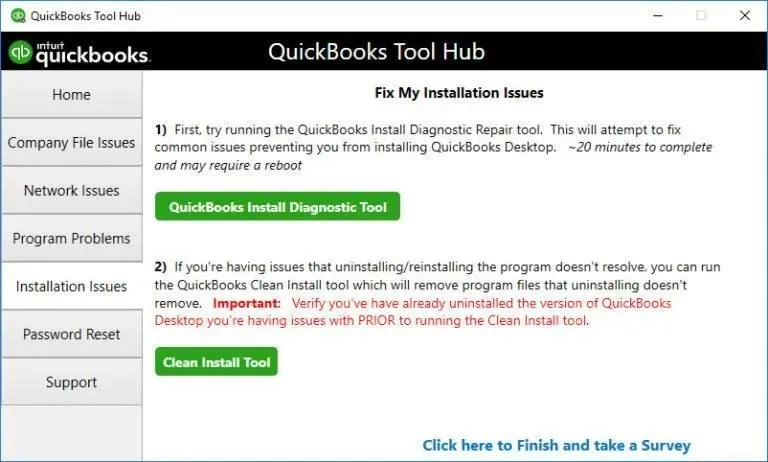
The Installation Issues section helps users troubleshoot common QuickBooks Desktop installation and setup problems.
Installation problems can occur because of:
- Damaged installation files.
- Missing or outdated Windows components.
- Microsoft .NET Framework problems.
- MSXML component issues.
- Interrupted installation processes.
- Windows permissions or security restrictions.
- Conflicts with other installed applications.
Common installation-related error codes include 1603, 1904, 1935, and 3371, although each error requires its own diagnosis.
QuickBooks Install Diagnostic Tool
This utility examines certain Microsoft components that QuickBooks Desktop depends on.
To run it:
- Open QuickBooks Tool Hub.
- Select Installation Issues.
- Choose QuickBooks Install Diagnostic Tool.
- Allow the diagnostic process to complete.
- Restart Windows when prompted or after completion.
- Open QuickBooks Desktop and test the original function.
Intuit notes that the diagnostic process can take up to approximately 20 minutes.
Do not interrupt the process simply because it appears to be taking longer than a few minutes.
Clean installation considerations
If repairing the installation does not resolve the issue, a clean installation may be considered.
A clean installation involves removing and reinstalling QuickBooks Desktop using the appropriate procedure for the installed edition.
Before attempting this, make sure you have:
- A verified company file backup.
- The correct installation files.
- Your license and product information.
- Access to the appropriate installer.
- The information needed to restore any required configuration.
A clean installation should not be the first response to every QuickBooks error. If the original problem is caused by a damaged company file or network configuration, reinstalling the application may not address it.
5. Password Reset
The Password Reset section provides access to the automated password reset utility for supported QuickBooks Desktop administrator password situations.
Users should distinguish between an administrator password problem and an Intuit account sign-in problem.
They are not necessarily the same.
If you cannot access a company file because its administrator password is unavailable, the password reset utility may be relevant.
The process may require product identification and account verification information.
Only use the official Intuit password reset procedure. Do not share administrator credentials, verification codes, or sensitive company information with unknown individuals.
6. Help & Support
The Help & Support section provides access to additional support resources and assistance when users encounter problems with Tool Hub or its diagnostic utilities.
It is particularly useful when:
- A diagnostic utility will not launch.
- A troubleshooting process produces an unexpected result.
- The available repair option does not match the problem.
- Additional guidance is required.
Before contacting support, record the QuickBooks version, Windows version, error code, and troubleshooting steps already attempted.
This information can make technical discussions more productive.
7. Advanced Tools
Advanced Tools provides access to common Windows troubleshooting shortcuts.
These shortcuts can help experienced users investigate system-level problems that may affect QuickBooks Desktop.
However, access to a Windows utility does not mean every setting should be changed.
Be careful when working with Windows administrative settings, services, and system configuration. Incorrect changes can create additional problems.
Users who are unfamiliar with these settings should seek appropriate technical guidance before modifying them.
QuickBooks Tool Hub: Which Tool Should You Choose?
Selecting the correct diagnostic utility is an important part of troubleshooting.
The following table provides a practical starting point.
| Problem or symptom | Recommended section | Utility or action |
|---|---|---|
| Company file will not open | Company File Issues | Quick Fix my File |
| Certain company file errors | Company File Issues | File Doctor |
| H202 or hosting problems | Network Issues | Database Server Manager |
| QuickBooks freezes | Program Problems | Quick Fix my Program |
| PDF or printing errors | Program Problems | Print & PDF Repair Tool |
| Installation problems | Installation Issues | Install Diagnostic Tool |
| Error 3371 | Installation Issues | 3371 troubleshooting |
| Administrator password problem | Password Reset | Automated password reset |
| Additional Windows investigation | Advanced Tools | Relevant Windows utilities |
This table is a starting point, not a guarantee that one tool will resolve every error in its category.
How to Download QuickBooks Tool Hub Safely
Downloading the utility from the official Intuit website is one of the most important precautions.
Third-party websites may offer installers with outdated versions, modified files, misleading download buttons, or unwanted bundled software.
Use Intuit's official support documentation to access the current download.
Official Intuit guide:
Step-by-Step Installation Instructions
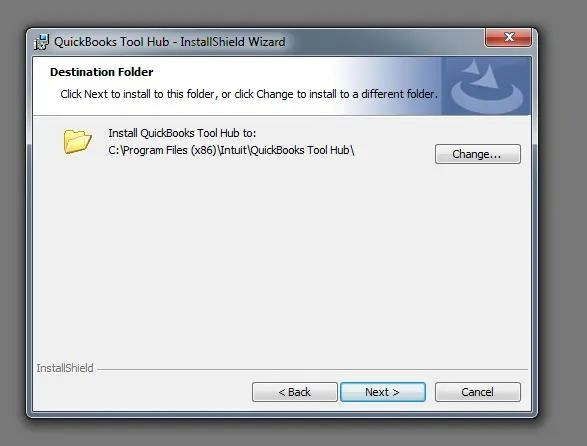
Follow the installation steps carefully to download and set up QuickBooks Tool Hub on a Windows computer.
Step 1: Close QuickBooks Desktop
Save your work and close the application before installing or using Tool Hub.
If QuickBooks is frozen, allow it to close properly before proceeding.
Step 2: Download the installer
Use the official Intuit download link and save the installation file somewhere easy to locate.
The installer is named:
QuickBooksToolHub.exe
Step 3: Open the downloaded file
Locate the installer in your Downloads folder or the location where you saved it.
Double-click the file to start installation.
Step 4: Follow the installation instructions
Read the displayed terms and conditions and follow the installation prompts.
Complete the setup process.
Step 5: Open QuickBooks Tool Hub
After installation, locate the desktop shortcut and open the application.
If the shortcut is unavailable, search Windows for QuickBooks Tool Hub.
Step 6: Verify the version
Open the Home tab and check the displayed version information.
This helps confirm which Tool Hub installation is currently running.
Step 7: Select the correct troubleshooting category
Choose the section that matches your original QuickBooks problem.
Do not run every available diagnostic utility without a reason.
What If Windows Blocks QuickBooksToolHub.exe?
Some users may encounter a warning indicating that Windows or Microsoft Defender has blocked the downloaded installer.
Before proceeding, verify that the file was downloaded from Intuit's official source.
If the download is legitimate but the browser or security software blocks it, Intuit recommends trying another browser.
If Microsoft Defender displays a warning, review the available information and the file's source before deciding whether to proceed.
Never disable antivirus protection permanently or run an installer from an unknown website simply to bypass a warning.
Common QuickBooks Problems You Can Investigate With Tool Hub
Understanding the relationship between an error and its likely cause helps prevent unnecessary troubleshooting.
QuickBooks Error H202
Error H202 generally indicates that a workstation cannot communicate properly with the computer hosting the company file in multi-user mode.
Possible causes include incorrect hosting configuration, blocked network communication, database service problems, or firewall restrictions.
Begin with the Network Issues section and investigate Database Server Manager on the server computer.
Also verify folder permissions, hosting settings, and network connectivity.
QuickBooks Error 6123
Error 6123 can appear when opening, restoring, or working with a company file in certain configurations.
Possible causes include company file problems, connection issues, or other configuration-related difficulties.
The Company File Issues section can provide a starting point for diagnosis.
However, identify whether the problem occurs with a local file, a restored file, or a network-hosted file before choosing a repair method.
QuickBooks Error 3371
Error 3371 is associated with problems involving QuickBooks license or entitlement information.
Installation Issues provides access to the relevant 3371 troubleshooting option.
Before using it, verify that QuickBooks is installed correctly and that the system has the required permissions and Windows components.
QuickBooks Error 6150
Error 6150 may indicate a problem involving the company file.
The Company File Issues section and QuickBooks File Doctor may help investigate supported file-related problems.
Always preserve an original backup before attempting repairs.
QuickBooks Desktop Stopped Working
If QuickBooks freezes, crashes, or stops responding, start with Program Problems.
Quick Fix my Program is a sensible initial diagnostic step.
If the issue remains, investigate the installation and Windows components. Also determine whether the problem occurs with every company file or only one particular file.
QuickBooks PDF and Printing Problems
If QuickBooks cannot print reports or create PDF documents, use the Program Problems section to access the appropriate repair utility.
Then verify the Windows printer configuration and drivers.
A printing issue affecting other applications as well may indicate a broader Windows or printer problem rather than a QuickBooks-specific fault.
QuickBooks Tool Hub Is Not Working: What Should You Do?
Sometimes the troubleshooting application itself fails to open or its utilities do not launch.
This creates a second problem: the user cannot access the diagnostic tools needed to investigate the original QuickBooks error.
Use the following checklist.
1. Verify the installation
Make sure QuickBooks Tool Hub completed installation successfully.
If the application is missing or incomplete, reinstall it using the official Intuit installer.
2. Check Windows permissions
Try opening the application with the appropriate Windows permissions.
Do not make unnecessary changes to system-level permissions.
3. Check security software
Review whether antivirus or endpoint protection software is blocking the installer or one of its components.
Only allow verified files from trusted sources.
4. Allow background downloads to finish
Intuit notes that tools launched from within Tool Hub may download in the background. This process can take approximately two to three minutes.
Keep the installation or download process open until it finishes.
5. Restart Windows
A restart can help clear temporary processes and allow pending installation changes to take effect.
6. Reinstall Tool Hub if necessary
If the application remains unusable, consider reinstalling it using the current official installer.
If the problem persists, investigate Windows-related issues rather than repeatedly reinstalling QuickBooks without identifying the cause.
Important Precautions Before Running QuickBooks Diagnostic Tools
Diagnostic utilities can be useful, but company file troubleshooting requires care because accounting data is important.
Follow these precautions before beginning:
Create a backup. Make a separate backup of your company file before running repair or recovery procedures.
Preserve the original file. Do not overwrite your only available copy with a repaired or restored file.
Confirm the file location. Make sure you are working with the correct company file, especially when multiple versions exist.
Avoid repeated repair attempts. Running different utilities repeatedly without understanding the issue may complicate troubleshooting.
Check the server first. For multi-user problems, determine whether the server or an individual workstation is responsible.
Keep Windows updated. Missing system updates or damaged Windows components can contribute to installation and application problems.
Document every change. Record the tools used, error messages displayed, and results obtained.
These precautions help make troubleshooting more controlled and reduce the risk of unnecessary changes.
QuickBooks Tool Hub vs. Manual Troubleshooting
Tool Hub and manual troubleshooting serve different purposes.
| QuickBooks Tool Hub | Manual troubleshooting |
|---|---|
| Provides a centralized diagnostic interface | Requires identifying individual settings and components |
| Offers guided utilities | Often requires technical knowledge |
| Helps investigate common application issues | Can address configuration-specific problems |
| Provides access to file and network tools | May require Windows and server administration |
| Simplifies access to supported repair options | Can be necessary when automated tools fail |
Neither approach is sufficient for every situation.
For example, File Doctor may help investigate certain company file problems, but a complicated network configuration may require a separate firewall or hosting investigation.
The best approach is to use the appropriate diagnostic utility first and then move to targeted manual troubleshooting when necessary.
Does QuickBooks Tool Hub Work With QuickBooks Online?
QuickBooks Tool Hub is intended for QuickBooks Desktop troubleshooting on Windows.
It is not a general repair application for QuickBooks Online.
QuickBooks Online operates through a web browser, so its troubleshooting process is different.
For browser-related problems, users should investigate internet connectivity, browser compatibility, cache and cookies, extensions, and account access.
Downloading Tool Hub will not repair a QuickBooks Online sign-in or browser problem.
Is QuickBooks Tool Hub Safe and Free?
QuickBooks Tool Hub is an Intuit-developed utility available without a separate purchase.
For safety, download it directly through Intuit's official support or download pages.
Avoid unofficial download sites, modified installers, and websites that ask for unnecessary personal or payment information to provide the utility.
Although the application is intended to help diagnose common problems, users should understand that no diagnostic tool can guarantee a successful repair in every situation.
The safest approach is to combine the appropriate utility with a verified backup and a clear understanding of the original error.
Related Keywords and Their Search Intent
The following related terms represent different troubleshooting needs associated with QuickBooks Tool Hub. They can be incorporated naturally into relevant discussions rather than repeated unnecessarily.
1. QuickBooks Tool Hub Download
Search intent: Users want to locate the official installer and obtain the correct application version.
2. QuickBooks Tool Hub 1.6.0.8
Search intent: Users want information about the current documented version and how to verify their installation.
3. QuickBooks File Doctor
Search intent: Users are investigating company file damage, missing lists, and supported 6000-series errors.
4. Quick Fix my Program
Search intent: Users need help with freezing, crashing, or startup problems in QuickBooks Desktop.
5. QuickBooks Database Server Manager
Search intent: Multi-user users want to investigate hosting and connectivity problems.
6. QuickBooks Install Diagnostic Tool
Search intent: Users are troubleshooting installation failures and damaged Windows components.
7. QuickBooks Error H202
Search intent: Users are trying to restore communication between a workstation and the server hosting a company file.
8. QuickBooks Error 3371
Search intent: Users are investigating license, entitlement, or installation-related problems.
9. QuickBooks PDF and Printing Repair
Search intent: Users need to resolve problems generating PDFs or printing QuickBooks reports.
10. QuickBooks Desktop Not Opening
Search intent: Users want to identify why the application freezes, crashes, or fails to start.
These terms should support the article's explanations. Their presence alone does not improve search visibility; the surrounding information must genuinely satisfy the reader's question.
Frequently Asked Questions About QuickBooks Tool Hub
1. What is QuickBooks Tool Hub used for?
QuickBooks Tool Hub provides access to diagnostic utilities for common QuickBooks Desktop problems involving company files, application performance, installation, networking, PDF creation, and printing.
2. Is QuickBooks Tool Hub free to download?
Yes. It is a free Intuit utility. Users should download it through official Intuit sources rather than third-party installer websites.
3. What is the latest QuickBooks Tool Hub version?
Intuit's published support instructions identify version 1.6.0.8 as the current documented version at the time of writing. Users should check the official download page for any subsequent release.
4. Does QuickBooks Tool Hub work on Windows 11?
Yes. Intuit recommends Windows 11 (64-bit) for the best experience.
5. Can QuickBooks Tool Hub fix company file errors?
It provides access to Quick Fix my File and QuickBooks File Doctor, which can investigate certain company file problems. However, complex data damage may require additional recovery procedures.
6. Which Tool Hub section should I use for Error H202?
Start with Network Issues. Investigate QuickBooks Database Server Manager on the computer hosting the company file, then review network configuration and firewall permissions.
7. Can Tool Hub repair QuickBooks installation errors?
It provides access to the QuickBooks Install Diagnostic Tool and other installation-related troubleshooting options. Some problems may still require Windows component repair or a proper QuickBooks reinstallation.
8. Does QuickBooks Tool Hub work with QuickBooks Online?
No. Tool Hub is designed for QuickBooks Desktop troubleshooting on Windows. QuickBooks Online requires browser- and account-specific troubleshooting.
9. How can I check my installed Tool Hub version?
Open QuickBooks Tool Hub and select the Home tab. The installed version is displayed there.
10. What should I do if QuickBooks Tool Hub does not fix my problem?
Identify whether the issue involves the company file, application, Windows installation, or network configuration. Review the diagnostic results, preserve your backup, and use the appropriate next troubleshooting procedure.
11. Can I use QuickBooks File Doctor without Tool Hub?
QuickBooks File Doctor is accessible through Tool Hub. If the utility does not launch from the interface, Intuit's instructions explain how to search for and open the installed File Doctor application manually.
12. Should I run every Tool Hub utility?
No. Each utility addresses a different category of problems. Select the tool that matches the symptoms and avoid unnecessary repair attempts.
Final Thoughts: Use QuickBooks Tool Hub With the Right Troubleshooting Approach
QuickBooks Tool Hub makes common QuickBooks Desktop troubleshooting more organized by bringing several diagnostic utilities into one application.
Its real value is not simply the number of tools available. It is the ability to select a relevant troubleshooting method based on the problem's symptoms.
A company file that refuses to open requires a different investigation from a workstation that cannot communicate with a hosting server. Similarly, a damaged installation and a PDF printing failure should not automatically receive the same repair procedure.
Start with the correct diagnostic category, preserve a reliable company file backup, verify the results, and investigate the underlying cause if the first repair attempt is unsuccessful.
For additional QuickBooks Desktop troubleshooting information and technical guidance, visit Data Service Team at https://dataserviceteam.com/.
If a technical problem remains unresolved, you can also contact Data Service Team at +1-(888)-718-7888 for assistance.
The goal should always be to restore reliable access to your accounting software while protecting the accuracy and integrity of your business records.
Official References for Further Reading
- Intuit: Fix Common Problems and Errors With QuickBooks Desktop Tool Hub
- Intuit: Fix Company File and Network Issues With QuickBooks File Doctor
- Intuit: QuickBooks Desktop Won't Open
This article is an independent educational guide. QuickBooks and Intuit are trademarks of Intuit Inc. Data Service Team is not represented as an official Intuit partner or affiliate.